 Paperlark
How to Add a Printer to an iPhone
An iPhone has no Add Printer button and no drivers to install. A printer that supports AirPrint and is connected to the same Wi-Fi network appears by itself when you tap Print and then No Printer Selected. So adding a printer really means two jobs: putting the printer on your Wi-Fi and confirming it supports AirPrint.
- settings screens for printers in iOS
- 0
- network for printer and iPhone
- 1
- address formats Paperlark accepts for a printer
- 4
- the usual printing port Paperlark tries
- 631
Everyday printing is free. Templates, ID photos and posters need Pro. iPhone only.
The Short Answer
Look in Settings and you will not find a Printers section. iOS treats printers like a service on the network: when you tap Print, it lists every AirPrint printer it can reach on the current Wi-Fi, and you pick one. Apple's own steps are exactly that: tap Print, tap No Printer Selected, choose the printer. If the printer is in that list, it is added. If it is not, one of the checks below is failing.
| Connection | Works from iPhone | What to do |
|---|---|---|
| Wi-Fi with AirPrint | Yes | Put it on your Wi-Fi, then pick it in the print screen |
| Ethernet cable to your router, with AirPrint | Yes | Keep the phone on that router's Wi-Fi |
| Wi-Fi without AirPrint | Not with iOS printing | Use the maker's app if one exists |
| USB only | No | Apple: USB-only printers print driverless only from a Mac |
| Bluetooth to a computer | No | Apple lists it as not working with AirPrint |
| Wi-Fi Direct | Not covered here | Apple's articles do not describe it and we have not tested it |
Source: Apple support articles listed above, read October 31, 2026.
Connect the Printer to Your Wi-Fi
This is the step that happens on the printer, not on the phone. Apple's instruction is simply to connect the printer to your Wi-Fi network; how you do that depends on the model. The common routes are:
- The printer's own screen. Many models with a display have a wireless setup wizard in the network or Wi-Fi settings. Pick your network name and type the Wi-Fi password.
- A button on the router. Some printers and routers can pair with a push button so you do not type the password. The printer's manual says whether yours can.
- The maker's setup app or page. Printers without a screen are often set up from the manufacturer's app or from a temporary network the printer creates. Follow the printer's quick start sheet.
- A network cable. Plug the printer into a free port on the router. It joins the same network as the router's Wi-Fi.
When it is done, print the printer's network configuration page from its menu or buttons. It shows the network name the printer joined and its IP address. Keep it: you need both for the checks below.
Check Whether the Printer Supports Printing From iPhone
Apple says AirPrint is built into most popular printer models, and the About AirPrint article lets you search by brand, model or category; if a printer is not listed, Apple says to check with the manufacturer. The quick signs are the AirPrint name or logo on the box or in the specifications, or a mention of driverless printing for Apple devices in the manual.
Paperlark adds a check of its own. On its Printer screen, under Printers on this network, each printer it finds is marked either Supports printing without drivers or Found; compatibility not confirmed. The first label means the printer announced on the network that it accepts the page formats iOS sends. The second means the printer answered, but did not say so, and printing may fail.
Find the Printer on Your iPhone
Join the printer's network
On the iPhone open Settings, Wi-Fi, and make sure the phone uses the same network name as the configuration page. On dual-band routers check whether the 2.4 GHz and 5 GHz networks have different names.
Open anything that prints
A photo or a PDF is enough. Tap the Share button, then Print.
Tap No Printer Selected
iOS searches the network and lists the printers it finds. Give it a few seconds after the printer wakes up.
Pick the printer
Tap its name, set the copies and tap Print. There is no separate install step: that is all adding a printer means on an iPhone.
The rest of the printing steps, from page ranges to Print Center, are in our guide on how to print from an iPhone.
Add a Printer by IP Address
The built-in print screen only shows printers that announce themselves on the network, and it has no field for an address. When a printer is on the network but stays out of the list, for example on a network that blocks those announcements, Paperlark can reach it directly by address.
Find the address
Read the IP address from the printer's network configuration page or its network settings screen. It looks like 192.168.1.50.
Open the Printer screen
In Paperlark open the printer setup and go to Add by IP address.
Type it and tap Connect
The app accepts a plain address, an address with a port such as 192.168.1.50:631, a name like printer.local or a full ipp:// link. Without a port it uses 631.
Read the answer
The message "Connected. This printer is selected" means the printer replied and Paperlark will print to it. "The printer did not answer at this address" means the address or the network is wrong.
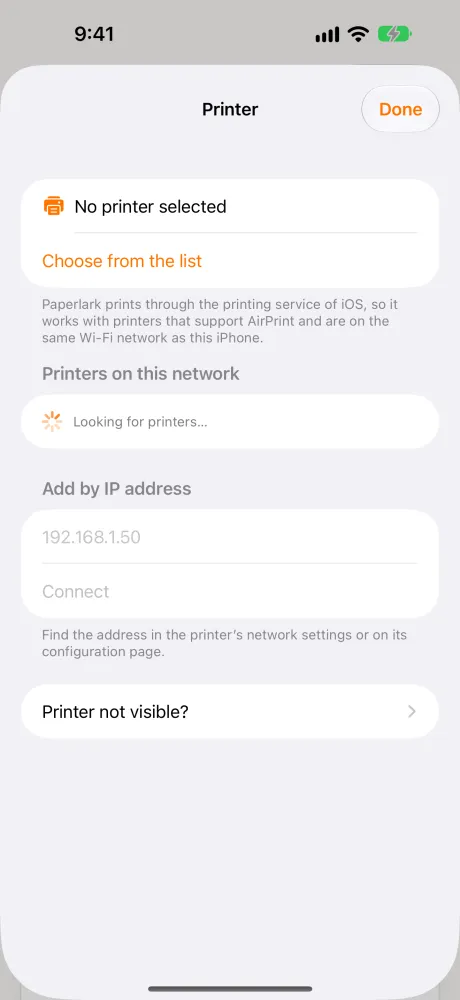
A router can hand the printer a different address after a restart. If a printer added by IP stops answering, print a new configuration page; many routers can reserve a fixed address for one device, which is set in the router, not on the phone.
Everyday printing is free. Templates, ID photos and posters need Pro. iPhone only.
Local Network Permission for Apps
Apps that search the network for printers themselves, as Paperlark does, need the Local Network permission, which iOS asks for the first time the app looks. Paperlark checks it: when the switch is off, the Printer screen says Local network access is off and points to Settings, Paperlark, Local Network. The longer list of things that hide a printer, from guest networks to VPNs, is on iPhone not finding the printer.
Printers That Will Not Work
Some printers cannot be added to an iPhone however long you try, and it helps to know before you spend an evening on it.
- Printers that connect only by USB. Apple says they print driverless only from a Mac over USB.
- Printers connected by USB to an AirPort base station or Time Capsule, or over Bluetooth to a computer, which Apple names as not working with AirPrint.
- Network printers without AirPrint support. They may still print through their maker's app; Paperlark cannot use them.
- A printer on a different network, such as the office printer while you are at home. iOS printing only reaches the local network.
| Symptom | Likely cause | Where to fix it |
|---|---|---|
| List stays empty | Phone and printer on different networks | Wi-Fi settings on both devices |
| Printer shown in one app only | Local Network permission off for the other app | Settings, the app, Local Network |
| Found; compatibility not confirmed | Printer does not announce driverless printing | Printer specifications, maker |
| Added by IP, later no answer | Router gave the printer a new address | New configuration page, router settings |
| Printer disappears on hotel or guest Wi-Fi | Network isolates devices | Use the network the printer is on |
Based on Apple's articles above and the checks built into Paperlark 1.0.
Questions
Where is Add Printer on iPhone
There is no such setting. Open something, tap Share, Print, then No Printer Selected, and pick the printer from the list. It has to support AirPrint and be on the same Wi-Fi.
How do I connect my iPhone to a printer with Bluetooth
iOS printing does not use Bluetooth. Apple names Bluetooth connections to a computer among the setups that do not work with AirPrint. Connect the printer to Wi-Fi instead.
Can I connect an iPhone to a printer with a USB cable
Not for built-in printing. Apple says USB-only printers print driverless only from a Mac. For such a printer, check whether its maker offers an app.
How do I know if my printer supports AirPrint
Look for AirPrint in its specifications or manual, or search Apple's list from the About AirPrint article. If it is not listed, ask the manufacturer.
Where do I find my printer's IP address
Print the network configuration page from the printer's menu, or open its network settings on the printer screen. The address looks like 192.168.1.50.
How do I remove a printer from my iPhone
iOS has no list of printers in Settings to delete from: the print screen offers whatever it finds, and you pick another one there. In Paperlark, the Printer screen has a Forget button for the saved printer.
Print From Your iPhone With Paperlark
Photos, documents and the templates from this site, with a preview that shows the sheet before it prints.
Everyday printing is free. Templates, ID photos and posters need Pro. iPhone only.