 Paperlark
How to Print From Your iPhone
Open the photo, document or page, tap the Share button (in some apps the More, Reply or Actions button), tap Print, pick your printer and tap Print again. That works with printers that support AirPrint and sit on the same Wi-Fi network as the iPhone, and nothing has to be installed. An app is only worth it when you want more control over the sheet than the iOS print screen offers.
- Share, Print, printer row, printer, Print
- 5 taps
- drivers or apps needed for built-in printing
- 0
- for the iPhone and the printer
- Same Wi-Fi
- Apple guide these steps follow
- iOS 27
Everyday printing is free. Templates, ID photos and posters need Pro. iPhone only.
The Short Answer
There is no printer driver on an iPhone. Printing goes through a service built into iOS that talks to printers with AirPrint support over your local network. If the printer is switched on, connected to the same Wi-Fi as the phone and supports AirPrint, it shows up in the list when you tap Print. If it does not show up, the problem is usually the network or the printer, not the file you are printing: jump to If the Printer Does Not Show Up.
What You Need Before You Print
- A printer that supports AirPrint. Apple says AirPrint is built into most popular printer models and needs a Wi-Fi or wired network connection. Its About AirPrint article links to a search by brand and model.
- One network for both devices. The iPhone and the printer must be on the same Wi-Fi network. A printer cabled into the router counts as long as the phone is on that router's Wi-Fi.
- An app with a Print action. Photos, Files, Mail, Safari and Notes have one, and so do many App Store apps. Apple's advice when an app has no Print action is to check that app's help.
- Paper in the right tray. Photo paper usually goes in a separate tray. The iPhone cannot see which paper is loaded, so this check is yours.
Print With the Built-In Print Option
These are the general steps from Apple's guide. Button names come from iOS 27; older versions place Print in the same menu.
Open what you want to print
Open the photo, PDF, email or web page in the app that shows it.
Open the menu with Print
Tap the Share button, the square with an arrow. Depending on the app, Print sits behind the More button, the Reply button (Mail) or the Actions button instead.
Tap Print
If you do not see it, swipe up in the list of actions. No Print at all means the app does not offer printing.
Choose the printer
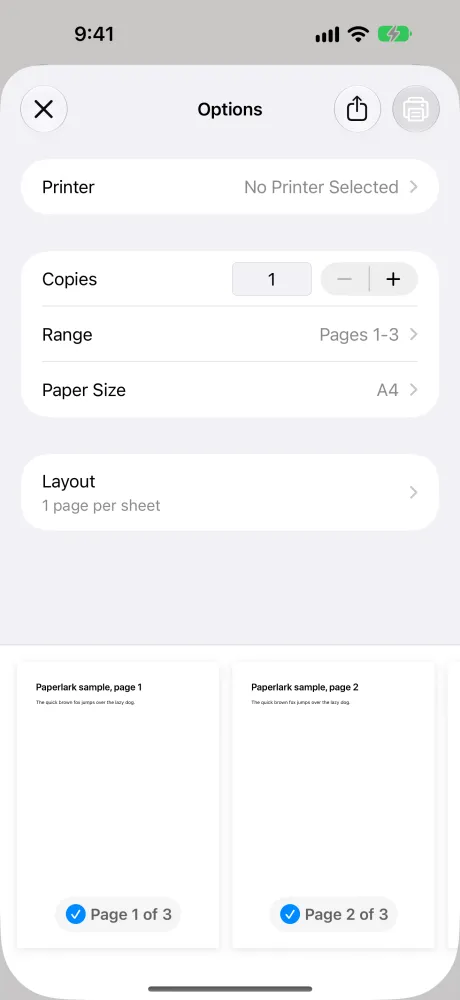
The first time, the Printer row says No Printer Selected. Tap it and pick your printer from the list.
Set copies and pages
Choose the number of copies and the page range. Other rows such as paper size or pages per sheet can appear as well, depending on the printer.
Tap Print
The button is in the upper right corner. The job goes to the printer and the screen closes.
Changed your mind? Apple's guide: open the App Switcher and tap Print Center. The badge shows how many documents wait in the queue; select a job and tap Cancel Printing.
From Photos
Open a photo, tap the Share button and tap Print. For several photos at once, Apple's photo printing guide says to tap Library or open a collection, tap Select, mark each photo, then tap the Share button and Print. iOS decides how big each picture comes out. When you want a fixed layout, for example four prints on one Letter sheet or a single photo filling 4x6 inch paper, lay it out first with the free photos on one page tool or the 4x6 preset and print the PDF it makes.
From Files and Mail
In Files, open the PDF or document and use the Share button. In Mail, Print is in the menu behind the Reply button, and it prints the message itself. An attachment prints on its own: open it first, then use its Share button. That way you can choose pages of the attachment without wasting a sheet on the email header.
From Safari
Open the page, tap the Share button and Print. The page prints the way the site styles it for printing, which can mean menus, cookie banners and ads on the paper. Paperlark's Web page option takes a link and prints it in reading mode, which keeps the article and drops menus and ads; that option is part of Pro.
Check That Your Printer Can Print From an iPhone
Apple keeps the rules short. The printer needs AirPrint, AirPrint needs a Wi-Fi or wired network, and printers that only connect by USB or Bluetooth are out. If you are not sure about your model, look for AirPrint in its specifications, search Apple's list, or ask the manufacturer. Our guide on adding a printer to an iPhone walks through connecting the printer to Wi-Fi and checking support step by step.
| Printer | Built-in iOS printing | What to do |
|---|---|---|
| Wi-Fi or network printer with AirPrint | Yes | Join the same Wi-Fi and tap Print |
| Network printer without AirPrint | No | Use the maker's own app, if there is one |
| USB only | No | Apple: USB-only printers print driverless only from a Mac |
| Bluetooth to a computer | No | Apple lists it among connections that do not work |
Source: Apple, About AirPrint and Use AirPrint, read October 31, 2026.
Print With Paperlark When You Need More Control
Paperlark uses the same iOS printing service, so it works with the same kind of printers as the built-in option. What it adds happens before the job is sent: it turns the file into the sheets that will come out and shows them, margins and color included. The app is still waiting for App Store review, so the steps below come from its code and interface, not from a public release.
Open the file
From the home screen choose Documents, Photos, Web page, Text or Scan a copy. From another app, pick Paperlark in the Share menu: one file, up to 60 photos, a link or text.
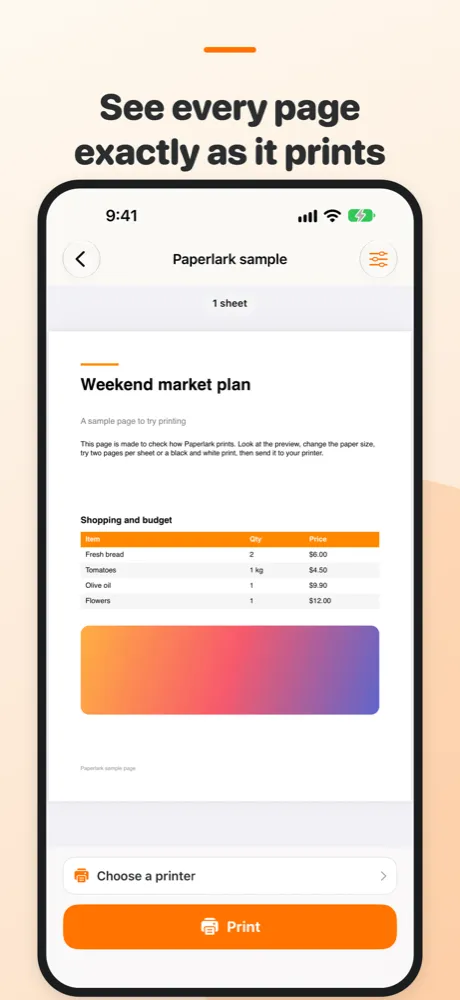
Check the preview
The preview shows every sheet with its number. Open Options to change the paper (A4, Letter, Legal, A3, A5, A6, 4x6 or 5x7), orientation, margins and scale: 100%, Fit to page or Shrink only.
Choose the printer once
Tap Choose a printer. The app remembers it, so the next Print goes straight to it. If that printer does not answer, the iOS print screen opens with the list instead.
Print
Tap Print. Printed files land in History so you can print them again later.
Word and Excel Files
A DOCX, DOC or RTF file is laid out by Paperlark's own engine, so tables, headers and fonts are placed before you see the preview. For an XLSX sheet the header row repeats on every page and a table that is too wide shrinks to the width of the paper, which avoids the classic printout where the last columns land on page five. Opening Excel files in other apps and printing from there gives you whatever layout that app chooses.
Several Photos on One Sheet
Choose 1, 2, 4 or 6 photos per sheet, fill the frame or fit the whole photo, add a thin line or a white border. Photos turn automatically to fill their cell. One photo per sheet is free; the multi-photo layouts are part of Pro, and you can set them up and look at the preview without paying. On this site the same layouts are free as a browser tool: in our test on October 31, 2026, four phone-size photos on one Letter sheet made a one-page PDF of 0.5 MB in about 4 seconds, each photo up to 95.5 x 127.2 mm.
Page Range Copies and Black and White
Type pages the way you would on a computer: 1-3, 5, 8- prints pages 1 to 3, page 5 and everything from page 8. Copies go up to 99. Black & white asks the printer to use black ink only, and Ink saver prints backgrounds and gray areas lighter while black text stays black. Page ranges, copies and black and white are free, with no daily limit and no account; Ink saver is part of Pro.
Everyday printing is free. Templates, ID photos and posters need Pro. iPhone only.
Built-In Printing and Paperlark Compared
For a PDF of a boarding pass or a single photo, the built-in option is enough and costs nothing. The app earns its place with files whose layout matters.
| Built-in Print | Paperlark app | Tools on this site | |
|---|---|---|---|
| Printers | AirPrint on the same Wi-Fi | The same printers, through iOS | Printers your computer or phone already prints to |
| Preview | Page thumbnails in the print screen | Every sheet as it will print, with margins | Layout of the PDF before you download |
| Copies and page range | Yes | Yes, up to 99 copies, ranges like 1-3, 5, 8- | In the browser print dialog |
| Black and white | Depends on the printer | Yes, plus Ink saver (Pro) | In the browser print dialog |
| Several photos per sheet | Not a layout choice in Apple's guide | 1, 2, 4 or 6, Pro | 1, 2, 4 or 6, free |
| Excel header row on every page | Depends on the app that opens the file | Yes | No |
| Calendars and paper templates | No | Yes, Pro | Free PDF files |
| Price | Free | Everyday printing free, Pro for layouts | Free |
Sources: Apple guides read October 31, 2026; Paperlark 1.0 code and interface; photos tool, poster tool, booklet maker and calendar on this site.
If the Printer Does Not Show Up
Work through these in order before you blame the printer.
- Compare the Wi-Fi name on the phone and on the printer's screen or network report. Routers with separate 2.4 GHz and 5 GHz names count as two networks.
- Leave guest networks. They often stop devices from seeing each other, and so do many hotel and office networks.
- Turn off a VPN or content filter while you print.
- Restart the printer, wait until it is back on Wi-Fi, then tap Print again.
- In Paperlark, allow Local Network access when iOS asks, or later in Settings. Without it the app cannot see printers, and it shows a warning with the way to fix it.
The full checklist with the reasons behind each step is on iPhone not finding the printer. If the printer is on the network but still hidden, Paperlark can add it by its IP address: the guide to adding a printer shows where to find that address.
Printing a contract that still needs your signature? Sign the PDF on your iPhone before you send it to the printer.
Questions
How do I print from my iPhone without an app
Use the Print action that iOS already has: open the item, tap Share (or More, Reply or Actions), tap Print, choose the printer and tap Print. It needs a printer with AirPrint support on the same Wi-Fi network.
Why is there no Print option
The app you are in does not offer printing. Apple suggests checking that app's help. Often you can save or share the file to Files and print it from there.
How do I print a PDF from my iPhone
Open it in Files, tap Share, then Print. Set the page range in the print screen so you only print the pages you need.
How do I cancel a print job on iPhone
Open the App Switcher and tap Print Center, select the job and tap Cancel Printing.
Can I print from my iPhone to a USB printer
Not with built-in printing. Apple says printers that connect only by USB print driverless only from a Mac. Some makers offer their own app for such printers.
Can I print in black and white from an iPhone
The iOS print screen shows a black and white switch only when the selected printer offers it. Paperlark has its own Black & white and Ink saver options that are sent with the job.
Print From Your iPhone With Paperlark
Photos, documents and the templates from this site, with a preview that shows the sheet before it prints.
Everyday printing is free. Templates, ID photos and posters need Pro. iPhone only.